How to Automate Appointment Reminders Reliably
Automate appointment reminders with clear timing, time zones, confirmation, rescheduling and stop rules. Test the full booking workflow before launch.
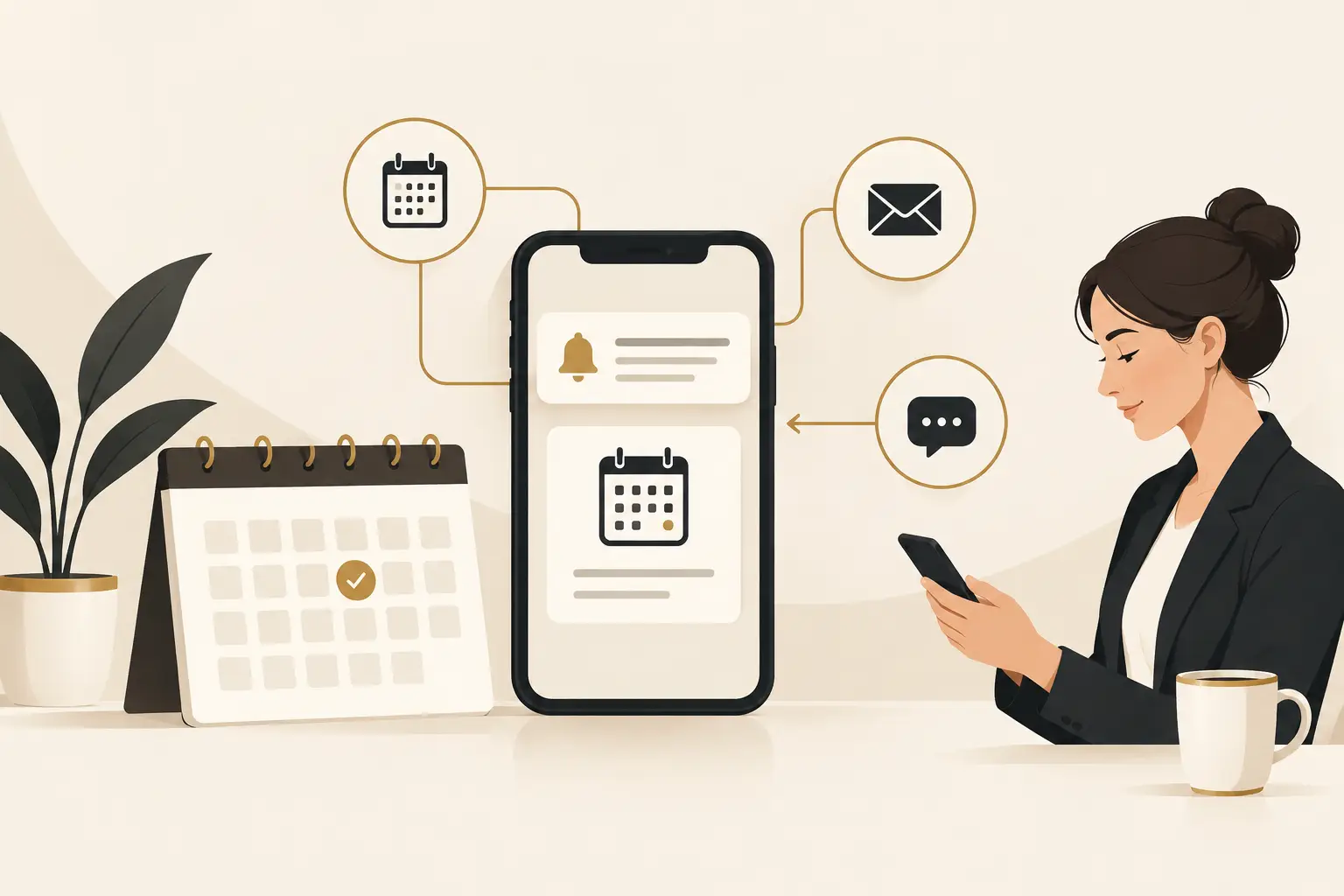
Automate appointment reminders from the authoritative appointment record, using approved contact channels, the correct time zone and explicit rules for confirmation, rescheduling and cancellation. Start with a small sequence and test replies and exceptions before adding more messages.
The goal is not to send more messages. It is to reduce preventable no-shows while making the experience easier for customers and staff. For established service businesses, that requires more than a scheduling link and a one-time text. The calendar, contact record, pipeline, reminder sequence, and reporting need to work from the same source of truth.
Start with the appointment journey, not the message
Appointment automation fails when it is designed around a tool instead of the customer's path to showing up. Map what happens from the moment a person selects a time through the appointment outcome. Include the booking source, assigned team member, service type, location or meeting details, confirmation status, and what happens after a cancellation or no-show.
This exercise often reveals the real issue. A prospect may book through the website, but the appointment does not enter the sales pipeline. Or a staff member may change a calendar event without updating the CRM, leaving the customer with an outdated reminder. Those are process gaps, not copywriting problems.
Decide which appointments deserve automation first. Consultations, estimates, sales calls, recurring service visits, and intake appointments each have different stakes. A high-value consultation may justify a confirmation call or a personalized pre-appointment message. A routine appointment may only need a concise text and email sequence.
Define the appointment statuses clearly
Before building workflows, establish the few statuses your team will use consistently: booked, confirmed, rescheduled, canceled, completed, and no-show. If every employee uses different labels, reporting becomes unreliable and automation cannot make the right decision.
A connected CRM can update these statuses as customers reply, click a reschedule option, or are marked by staff after the meeting. The important part is ownership. Someone should be accountable for reviewing exceptions, particularly appointments that are unconfirmed close to the scheduled time.
How to automate appointment reminders with useful timing
The best timing depends on how far ahead customers tend to book, the appointment's value, and how much preparation is required. There is no universal sequence that fits every business. A service that requires paperwork or travel needs earlier notice than a short virtual check-in.
A practical starting sequence includes an immediate confirmation after booking, a reminder far enough ahead to allow a schedule change, and a final reminder shortly before the appointment. The first message reassures the customer that the booking worked. The middle message protects the calendar by making confirmation or rescheduling easy. The final message provides the details they need to arrive prepared.
For many businesses, SMS is effective for time-sensitive reminders because customers tend to see it quickly. Email is better for longer instructions, forms, directions, meeting agendas, or documentation. Using both can be appropriate, but only when each channel has a job. Repeating the same lengthy message across text and email can feel excessive.
Keep the reminder focused. It should identify the business, state the appointment date and time with the correct time zone when relevant, name the assigned person or service, and provide a clear path to confirm, reschedule, or cancel. If preparation is required, say exactly what the customer needs to bring or complete.
Build response handling into the workflow
A reminder is only useful if the customer's response triggers the right next step. Do not ask people to reply "yes" unless the system can recognize that response, update the record, and stop unnecessary follow-ups. Likewise, a cancellation request should not sit in an inbox while a valuable appointment slot remains unavailable.
Set up clear rules for common replies. A confirmation can update the appointment status and notify the assigned team member. A reschedule request can send the customer to approved availability or create a task for a coordinator. A cancellation can release the time and trigger the appropriate follow-up, such as a rebooking invitation or a call task for a high-priority opportunity.
Natural-language replies require special care. Customers may write "I need next week," "running late," or "can my spouse attend instead?" AI reception or chat can help classify routine requests and gather details, but it should have escalation rules. A customer with an urgent concern, a complex request, or repeated frustration needs a person who can take ownership.
Connect scheduling, CRM, and team operations
Disconnected software creates duplicate work and customer confusion. If a scheduler, calendar, CRM, phone system, and email platform each hold different information, reminders will eventually go to the wrong person or reference the wrong appointment.
Your automation should treat the appointment record as a shared operational event. When a lead books, the CRM should capture the inquiry source, service interest, appointment type, and assigned owner where available. The workflow should then create or update the contact, move the opportunity to the correct pipeline stage, and begin the relevant reminder sequence.
At minimum, validate these four connections before launch:
- New bookings create or update the correct contact record without duplicates.
- Reschedules update the calendar event and pause outdated reminder messages.
- Cancellations remove future reminders and notify the responsible team member.
- Completed and no-show appointments return to the pipeline for the correct follow-up.
The Montoya Growth OS can bring scheduling, contact records, pipelines, follow-up, and reporting into one operating system, but implementation still depends on your actual process. The right setup for a single-location service business will differ from a professional-services firm assigning appointments across several advisors. Configuration should follow the way your team can reliably work, not force staff into an overly complicated workflow.
Write messages that reduce friction
Reminder copy should sound like a helpful coordinator, not a broadcast campaign. Start with the essential detail, then make the next action obvious. Avoid vague wording such as "Please remember your appointment." Customers need to know when, where or how, and what to do if plans change.
For example, an early reminder can ask the customer to confirm or choose a new time. A same-day message can include parking instructions, a virtual meeting link, or a request to arrive a few minutes early. If the appointment is a sales consultation, avoid sending an aggressive promotional message disguised as a reminder. The immediate job is attendance and a productive conversation.
Also consider consent and communication preferences. Your process should respect opt-outs and use appropriate business messaging practices. If your team serves customers in multiple time zones, ensure reminders are scheduled based on the appointment's local time rather than the office's default setting.
Measure the operational result
Do not judge the system by message volume or open rates alone. Track the indicators that show whether the process is protecting booked time: confirmation rate, reschedule rate, cancellation rate, no-show rate, time from inquiry to appointment, and the percentage of completed appointments that receive the intended next follow-up.
Review results by appointment type and booking source. If one source produces a high no-show rate, the issue may be lead quality, unclear expectations, or an overly long wait between booking and the meeting. If customers frequently reschedule after the final reminder, your earlier timing may be too late.
A small amount of manual review remains valuable. Listen to call recordings where appropriate, read a sample of replies, and ask the people handling appointments where customers get stuck. Automation should remove repetitive administration while making it easier for staff to spot exceptions.
When appointment reminders need a broader fix
If reminders are not improving attendance, resist the urge to add more messages immediately. The problem may be a confusing booking flow, slow initial follow-up, limited availability, inaccurate calendar ownership, or a mismatch between the appointment promise and the customer's expectations.
That is why reminder automation works best as part of a connected customer journey. Capture inquiries correctly, qualify and route leads, make booking simple, follow up consistently, and give the sales or service team a complete record before the appointment begins. A well-designed reminder sequence supports that system. It cannot replace it.
The next useful step is to review one real appointment path from first inquiry through completion. The gaps will usually show you whether you need better message timing, cleaner integrations, or a clearer operating process for the team behind the calendar.
An example reminder sequence to adapt
This is a hypothetical starting point, not a proven optimal cadence. Adjust it for your appointment type, lead time, customer preferences and staffing.
| Event | Example action | Guardrail |
|---|---|---|
| Booking confirmed | Send the agreed date, time, zone and location or meeting link | Trigger from a real booking event |
| One day before | Offer a useful confirm or reschedule route | Skip if the appointment was canceled or booked too recently |
| Shortly before | Send concise arrival or meeting details if appropriate | Respect the customer's channel preferences and agreed hours |
| Reschedule or cancellation | Cancel old queued reminders and update the current event | Do not send the previous time after the change |
| Ambiguous reply or delivery failure | Create an exception for a named person | Do not mark the customer confirmed without evidence |
Test a booking across time zones, a daylight-saving change, a late reschedule, a canceled appointment, an opt-out and a failed message. Define what stops and what remains a staff task. Review your provider's messaging policy for its requirements; implementation needs the appropriate permissions and sender setup.
Does a delivered reminder prove the customer will attend?
No. Delivery, confirmation and attendance are different events. Reconcile the actual calendar and staff outcome instead of treating a message or link click as attendance.
Build around the calendar your team actually operates
Discuss your booking and reminder workflow. Explore Growth OS for connected calendars and customer records, with the selected package and any additional workflow scope confirmed before implementation.
Illustrative artwork; not a live product interface, client result or staff photograph.